 A look at the Gemmaverse as Gemma surpasses one billion downloads.
Inside the Gemmaverse: Celebrating one billion Gemma downloads
A look at the Gemmaverse as Gemma surpasses one billion downloads.
A look at the Gemmaverse as Gemma surpasses one billion downloads.
Hi everyone! We've just released Chrome Beta 153 (153.0.8010.5) for Android. It's now available on Google Play.
You can see a partial list of the changes in the Git log. For details on new features, check out the Chromium blog, and for details on web platform updates, check here.
If you find a new issue, please let us know by filing a bug.
Chrome Release Team
Google Chrome
We are introducing a new admin setting in Google Chat that allows administrators to restrict specific users or groups from creating spaces, while continuing to permit them to create 1:1 direct messages (DMs) and group direct messages (gDMs).
Previously, Chat restriction settings functioned as a single all-or-nothing toggle, which disabled all conversation creation. With this update, administrators gain more flexible policy enforcement with the following restriction levels:
This enhancement is particularly useful for organizations—such as educational institutions, frontline environments, and external vendor/contractor teams—that want to ensure space creation is managed through designated approval workflows or admin creation, without disrupting day-to-day direct communication.
Hi everyone! We've just released Chrome Beta 153 (153.0.8010.4) for iOS; it'll become available on App Store in the next few days.
You can see a partial list of the changes in the Git log. If you find a new issue, please let us know by filing a bug.
Chrome Release Team
Google Chrome
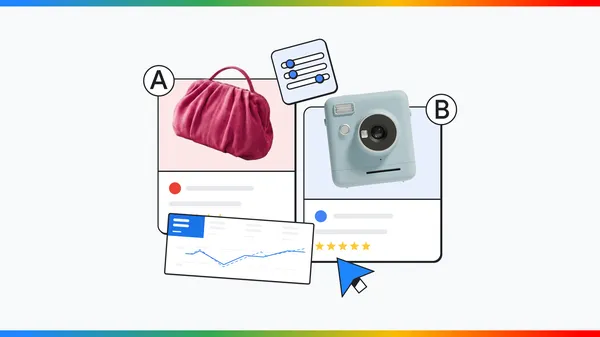 Use new AI Max tools — like A/B tests and performance planners for budget and bidding changes — to maximize your Search campaigns.

M-151, ChromeOS version 16733.54.0 (Browser version 151.0.7922.168) has rolled out to ChromeOS devices on the Stable channel.
If you find new issues, please let us know one of the following ways:
Visit our ChromeOS communities
General: Chromebook Help Community
Beta Specific: ChromeOS Beta Help Community
Interested in switching channels? Find out how.
Andy Wu
Google ChromeOS
Hello Everyone! We've just released Chrome 152 (152.0.7977.54) for Android to a small percentage of users. It'll become available on Google Play over the next few days. You can find more details about early Stable releases here.
This release includes stability and performance improvements. You can see a full list of the changes in the Git log. If you find a new issue, please let us know by filing a bug.We are excited to introduce Room Display mode, a new dual-window experience for Google Meet on the web. Launching in beta, this feature is designed specifically for "Bring Your Own Device" meeting spaces, where users connect a personal laptop to a shared external display, such as a TV or projector.
 |
Joining in Room Display mode |
Historically, setting up a meeting on a shared display (e.g. in a meeting room) meant manually dragging browser windows across screens, dealing with clunky display layouts, and risking showing your browsing windows. Room Display mode removes this complexity by automatically splitting your meeting interface into two dedicated views the moment you connect your device and join the call:
 |
Shared View (TV) in Room Display mode with and without and active presentation |
 |
Personal View (Laptop) in Room Display mode with an active presentation with speaker notes and with the Ask Gemini side panel open |
Whether you’re hosting a team sync, leading a pitch, or watching a presentation, Room Display mode makes running meetings on a shared display and collaborating in hybrid environments more seamless and professional.
Note: This requires a Chromium-based browser (such as Google Chrome or Microsoft Edge) with Window Management permissions enabled.
Today we are announcing the release of v25.1 of the Google Ads API. To use the new capabilities, you must upgrade your client libraries and client code. All the updated client libraries and code examples have been published.
Come join us for a live walkthrough of this release in our "Google Ads API Release Highlights" event on Discord or our Ads Developers YouTube Live tomorrow (August 20th at 10am ET). This will also be recorded and posted on YouTube for those who can’t make the live events. If you have any questions or want to discuss this post, reach out to us in the #ads-api channel on Discord.
Here are the highlights of what’s new in v25.1:
LiftMeasurementConfig and LiftMeasurementFlight allow you to inspect study configurations, flight dates, campaign details, and conversion goals. This release includes 24 new Conversion Lift metrics and winner score metrics for statistical analysis, as well as new Brand Lift dimension resources: LiftMeasurementAgeRange, LiftMeasurementCampaign, LiftMeasurementDevice, LiftMeasurementGender, and LiftMeasurementVideo. Refer to our help center article to learn more about Brand lift and Conversion lift. Both these features are available only to allowlisted Google Ads accounts. To use these features, contact your Google account representative.
category_filter parameter in BenchmarksService.GenerateBenchmarksMetrics. Supported categories can be discovered via ListBenchmarksSources. In addition, new customer ad metrics (aggregate cost, views) and share metrics such as share_of_voice are now surfaced via AggregateMetrics and ShareMetrics.
ContentCreatorInsightsService now supports brand sentiment data, allowing you to retrieve sentiment distributions and summaries for creators and brands via BrandSentimentInsight.
Segments.loyalty_membership. Additionally, the new LOYALTY_MEMBERSHIP primary dimension in ConversionValueRulePrimaryDimension allows you to track when a loyalty membership condition was satisfied for a conversion value rule.
Metrics.original_conversion_value metric surfaces the unadjusted conversion value from biddable conversions before any conversion value rules or customer lifecycle goal adjustments are applied.
ReachPlanService now supports parental_statuses targeting within Targeting and PlannableTargeting for reach forecasting and plannable product discovery.Google Ads API v25.1 is a drop-in upgrade for v25. If you use our client libraries, download the latest version of your client library to start using these features. For a full list of changes, please review the official release notes. If you have any questions or want to discuss this post, please reach out to us on our “Google Advertising and Measurement Community” Discord server.
For technical support issues, please reach out to the Google Ads API support channel.