We are pleased to announce the release of v3.0.0 of the Google Ads API Developer Assistant. This major release marks a significant milestone in the evolution of the Assistant, focusing on architectural modernization, improved reliability, and a more modular design.
With this release, we are migrating the Assistant to the Google Antigravity agent framework and transitioning to a Skills-based architecture. These changes make the Assistant more robust, easier to maintain, and reduce token use.
What’s new in v3.0.0?
1. Powered by the Antigravity framework
The Google Ads API Developer Assistant has migrated from gemini-cli to the Antigravity agent framework (v3.0.0). This underlying framework upgrade provides a more structured and reliable execution environment. Along with this, the directory and file structure of the project has been updated to be fully Antigravity-ready.
Support for gemini-cli will terminate on June 18, 2026, as detailed in this Google blog announcement.
2. A modular, skills-based architecture
We have transitioned the Assistant's core capabilities into Skills. Instead of relying on broad, unstructured instructions in a context file, the Assistant now loads specialized, test-backed tool directories (Skills) dynamically when needed. This drastically reduces "hallucinations" and ensures tasks are executed using precise, verified procedures.
Key updates in this modular transition include:
- GAQL validation (
validate_gaql): Moved to a dedicated skill. It now includes enhanced static query checks for date segments, click_view single-day filters, and change_status boundaries.
- Troubleshoot conversions (
troubleshoot_conversions): Replaces the old conversions_support_package. It consolidates all conversion troubleshooting and upload summary scripts, and tests into a single, cohesive skill directory.
- Structured commands (
explain and step_by_step): Converted to skills to enforce consistent, structured layouts for explanations.
- New account mapping (
get_cids_under_mcc): A new skill to retrieve all child accounts under a Manager Account (MCC).
- New object inspection (
inspect_object): A new skill for dynamically looking up Protobuf messages and Enums on the fly, to help ensure the Assistant always uses correct structures.
- New PMax listing filter (
pmax_listing_filter): A new skill to standardize listing group webpage exclusion tree modifications for Performance Max campaigns.
3. Enhanced consistency & rigor
We've introduced stricter rules and requirements to help ensure high-quality code generation and query validation:
- Explicit API versioning: Critical skills like
get_cids_under_mcc, validate_gaql, and troubleshoot_conversions now require an explicit api_version argument, eliminating ambiguity.
- Strict GAQL rules:
- Added a rule to
AGENTS.md to prevent the use of SQL aggregate functions (such as SUM, COUNT, and AVG) in GAQL queries, as they are not supported.
- Added a rule to check Google Ads API Developer site release notes first for the current API version to ensure the Assistant uses up-to-date documentation.
- Streamlined configuration:
AGENTS.md has been streamlined leading to a smaller initial context window. Duplicate conversion documentation has been removed in favor of programmatic skills.
4. Developer Experience (DX) improvements
We've made several quality-of-life improvements to make your development loop faster and smoother:
- Persistent virtual environment (
.venv): The virtual environment is no longer deleted at the end of a session. On startup, the Assistant checks your system's Python version; it only rebuilds the .venv if a newer Python version is available.
- Smart API version caching: The Assistant now caches the current Google Ads API version with a TTL of 19 hours, reducing startup time by avoiding redundant network checks.
- Better debugging with persistent logs: Log messages now include datetime stamps. The log file is written to the
.agents/ directory and is no longer reset on each run, preserving history for troubleshooting.
Why should you upgrade?
The upgrade to v3.0.0 is primarily about reliability and structure. By moving to the Antigravity framework and modularizing features into Skills, we have made the Assistant more predictable and resource efficient.
If you want a faster startup, more reliable GAQL validation, and a more robust troubleshooting experience, we recommend upgrading to v3.0.0.
Get started
First installation
- Install Antigravity CLI: Follow instructions at https://antigravity.google/.
- Clone the Assistant:
git clone https://github.com/googleads/google-ads-api-developer-assistant.git
- Run the Install Script:
- Linux/macOS: Run
./install.sh (defaults to Python support, use flags like --php or --ruby for other languages).
- Windows: Open PowerShell and run
.\install.ps1.
Upgrade from v2.x
- Copy any custom code or data from
saved/ to a secure location outside the project directory.
- Delete your local clone of the Assistant.
- Clone the repository:
git clone https://github.com/googleads/google-ads-api-developer-assistant.git
- Run the install script (
install.sh or install.ps1) to initialize the new Antigravity environment.
Bob Hancock, Google Ads API Team
 An overview of DiffusionGemma, an exceptionally fast text generation model with up to 4x faster speeds.
 Google is rolling out many of Chrome's latest AI features in Latin America, Africa, the Middle East and more.
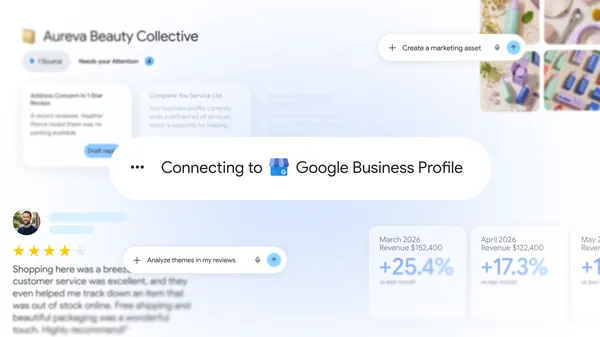 An overview of new features in the Gemini app designed specifically to support businesses and entrepreneurs.
 - Trevor Mulchay, Display & Video 360 API Team
 Young people aren’t just end users of AI; they should be involved in its design and governance. This report highlights how the next generation is prepared to shape the t…
 Research with 6,000 UK teens shows AI is vital for learning and creativity. We need "scaffolding" safeguarding and regulation to help children navigate digital risks, wh…