If you find new issues, please let us know one of the following ways:
Visit our ChromeOS communities
General: Chromebook Help Community
Beta Specific: ChromeOS Beta Help Community
Google ChromeOS
Visit our ChromeOS communities
General: Chromebook Help Community
Beta Specific: ChromeOS Beta Help Community
Visit our ChromeOS communities
General: Chromebook Help Community
Beta Specific: ChromeOS Beta Help Community
Posted by Matthew McCullough – VP of Product Management, Android Developer
In this dynamic and complex ecosystem, our commitment is to your success. That's why in our summer episode of The Android Show, we're making it easier for you to build amazing apps by unpacking the latest tools and opportunities. In this episode, we’ll cover how you can get building for Wear OS 6, boost your productivity with the latest Gemini in Android Studio updates, create for the new Pixel 10 Pro Fold, and even have some fun with the new AI-powered Androidify. (And for Android users, we also just dropped a bunch of new feature updates today; you can read more about those here). Let’s dive in!
We're focused on making you more productive by integrating AI directly into your workflow. Gemini in Android Studio is at the center of this, helping teams like Entri who was able to reduce UI development time by 40%. You can now connect Model Context Protocol servers to Android Studio, which expands the tools, knowledge, and capabilities of the AI Agent. We also just launched the Android Studio Narwhal 3 feature drop, which brings more productivity boosters like Resizable Compose Preview and Play Policy Insights.
The new Pixel 10 Pro Fold creates an incredible canvas for your app, and we're simplifying development so you can take full advantage of it. The Compose Adaptive Layouts 1.2 library, now officially in beta, makes it easier than ever to build for large screens and to embrace adaptive app development. This library is packed with tools to help you create sophisticated, adaptive UIs with less code. We're focused on helping you build intuitive and engaging experiences for every screen. This foundational library is packed with powerful tools to help you create sophisticated, adaptive UIs with less code. Build dynamic, multi-pane experiences using new layout strategies like Reflow and Levitate, and use the new Large and Extra-Large window size classes to make your app more intuitive and engaging than ever. Read more about these new tools here.
We want to help you build amazing experiences for the wrist, and the new Pixel Watch 4 with Wear OS 6 provides a powerful new stage for your apps. We're giving you the tools to make your apps more expressive and personal, with Material 3 Expressive to create stunning UIs. You can also engage users in new ways by building your own marketplace with the Watch Face Push API. All of this is built on a more reliable foundation, with watches updating to Wear OS 6 seeing up to 10% better battery life and faster app launches.
Our journey to reimagine Android with Gemini at its center extends to everything we do—including our mascot. That's why we rebuilt Androidify with AI at its core. With the new Androidify, available on the web or on Google Play, you can use a selfie or a prompt to create your own unique Android bot, powered by Gemini 2.5 Flash and Imagen. This is a fun example of how we're building better user experiences powered by AI... Try it out for yourself—we can’t wait to see what you build.
Under the hood, we’re using Gemini 2.5 Flash to validate the prompt and Imagen to create your Android bot. And on Friday’s this month, you’ll be able to animate your Android bot into an 8-second video; this feature is powered by Veo and available to a limited number of creations. You can read more about the technical building of the Androidify app here. Try it out for yourself - we can’t wait to see your inner Android!
Thank you for tuning into this quarter's episode. We're excited to continue building great things together, and this show is an important part of our conversation with you. We'd love to hear your ideas for our next episode, so please reach out on X or LinkedIn. A special thanks to my co-hosts, Annyce Davis and John Zoeller, for helping us share the latest updates.

Entri delivers online learning experiences across local languages to over 15 million people in India, empowering them to secure jobs and advance in their careers. To seize on the latest advancements in AI, the Entri team explored a variety of tools to help their developers create better experiences for users.
Their latest experiment? Adopting Gemini in Android Studio to enable them to move faster. Not only did Gemini speed up the teams’ work, trim tedious tasks, and foster ongoing learning, it streamlined collaboration between design and development and became an enjoyable, go-to resource that boosted the team’s productivity overall.
To tighten build time, developers at Entri used Gemini in Android Studio to generate Compose UI code directly from mockups. By uploading screenshots of Figma designs, Gemini produced the UI structures they needed to build entire screens in minutes. Gemini played a key role in revamping the platform’s Sign-Up flow, for example, fast-tracking a process that typically takes hours to just under 45 minutes.
By streamlining the creation of Compose UIs—often from just a screenshot and a few prompts—Gemini also made it significantly easier to quickly prototype new ideas and create MVPs. This allowed their team to test concepts and validate business needs without getting bogged down by repetitive UI tweaks up front.
Entri developers found that the ability to generate code by attaching images in Gemini in Android Studio drastically reduced boilerplate work and improved alignment between design and engineering. Over time, this approach became a standard part of their prototyping process, with the team reporting 40% reduction in average UI build time per screen.

The Entri team has a strong culture of experimentation, and often has multiple user-facing experiments running at once. The team found Gemini in Android Studio particularly valuable in speeding up their experimentation processes. The tool quickly produced code for A/B testing, including UI changes and feature toggles, allowing the team to conduct experiments faster and iterate in more informed ways. It also made it faster for them to get user feedback and apply it. By simplifying the early build phase and allowing for sharper testing, Gemini boosted their speed and confidence, freeing them up to create more, test faster, and refine smarter.
When it came to launching new AI learning features, Entri wanted to be first to market. With Gemini in Android Studio’s help, the Entri team rolled out their AI Teaching Assistant and Interview Coach to production much faster than they normally could. “What used to take weeks, now takes days,” said Jackson. “And what used to take hours, now takes minutes.”

Gemini in Android Studio has changed the game for Entri’s developers, removing the need to break focus to switch between tools or hunt through external documentation. Now the team receives instant answers to common questions about Android APIs and Kotlin syntax without leaving the application.
For debugging crashes, Gemini was especially useful when paired with App Quality Insights in Android Studio. By sharing stack traces directly with Gemini, developers received targeted suggestions for possible root causes and quick fixes directly in the IDE. This guidance allowed them to resolve crashes reported by Firebase and Google Play more efficiently and with less context switching. Gemini surfaced overlooked edge cases and offered alternative solutions to improve app stability, too.

Entri developers also wanted to test the efficiency of Gemini in Android Studio on personal projects as well. They leaned on the tool to create a weather tracker, password manager, and POS billing system—all on top of their core project work at Entri. They enjoyed trying it out in their personal projects and experimenting with different use cases.
By offloading repetitive tasks and expediting initial UI and screen generation, Gemini has allowed developers to focus more on innovation, exploration, and creativity—things that often get sidelined when dealing with routine coding work. Now the team is able to spend their time refining final products, designing smarter UX, and strategizing, making their day-to-day work more efficient, collaborative, and motivating.
Ramp up your development processes with Gemini in Android Studio.
Dashlane is a password management and provision tool that provides a secure way to manage user credentials, access control, and authentication across multiple systems and applications.
Dashlane has over 18 million users and 20,000 businesses in 180 countries. It’s available on Android, Wear OS, iOS, macOS, Windows, and as a web app with an extension for Chrome, Firefox, Edge, and Safari.
Recently, they expanded their offerings by creating a Wear OS app with a Credential Provider integration from the Credential Manager API, bringing passkeys to their clients and users on smartwatches.
Dashlane users have frequently requested a Wear OS solution that provides standalone authentication for their favorite apps. In the past, Wear OS lacked the key APIs necessary for this request, which kept Dashlane from being able to provide the functionality. In their words:
“Our biggest challenge was the lack of a standard credentials API on Wear OS, which meant that it was impossible to bring our core features to this platform.”
This has changed with the introduction of the new Credential Manager API on Wear OS.
Credential Manager provides a simplified, standardized user sign-in experience with built-in authentication options for passkeys, passwords, and federated identities like Sign in with Google. Conveniently, it can be implemented with minimal effort by reusing the same code as the mobile version.
The Dashlane team was thrilled to learn about this, as it meant they could save a lot of time and effort: “[The] CredentialManager API provides the same API on phones and Wear OS; you write the code only once to support multiple form factors.”

After Dashlane had planned out their roadmap, they were able execute their vision for the new app with only a small engineering investment, reusing 92% of the Credential Manager code from their mobile app. And because the developers built Dashlane’s app UI with Jetpack Compose for Wear OS, 60% of their UI code was also reused.

To provide credentials to other apps with Credential Manager, Dashlane needed to implement the Credential Provider interface on Wear OS. This proved to be a simple exercise in calling their existing mobile code, where Dashlane had already implemented behavior for credential querying and credential selection.
For example, Dashlane was able to reuse their logic to handle client invocations of CredentialManager.getCredential. When a client invokes this, the Android framework propagates the client’s getCredentialRequest to Dashlane’s CredentialProviderService.onBeginGetCredentialRequest implementation to retrieve the credentials specified in the request.
Dashlane delegates the logic for onBeginGetCredentialRequest to their handleGetCredentials function, below, which is shared between their mobile and Wear OS implementations.
// When a Credential Manager client calls 'getCredential', the Android
// framework invokes `onBeginGetCredentialRequest`. Dashlane
// implemented this `handleGetCredentials` function to handle some of
// the logic needed for `onBeginGetCredentialRequest`
override fun handleGetCredentials(
    context: Context,
    request: BeginGetCredentialRequest):
List<CredentialEntry> =
  request.beginGetCredentialOptions.flatMap { option ->
    when (option) {
      // Handle passkey credential
      is BeginGetPublicKeyCredentialOption -> {
        val passkeyRequestOptions = Gson().fromJson(
            option.requestJson, PasskeyRequestOptions::class.java)

        credentialLoader.loadPasskeyCredentials(
          passkeyRequestOptions.rpId,
          passkeyRequestOptions.allowCredentials ?: listOf()
        ).map { passkey ->
          val passkeyDisplayName = getSuggestionTitle(passkey, context)

          PublicKeyCredentialEntry.Builder(
            context,
            passkeyDisplayName,
            pendingIntentForGet(context, passkey.id),
            option
          )
          .setLastUsedTime(passkey.locallyViewedDate)
          .setIcon(buildMicroLogomarkIcon(context = context))
          .setDisplayName(passkeyDisplayName)
          .build()
// Handle other credential types
Reusing precise logic flows like this made it a breeze for Dashlane to implement their Wear OS app.
“The Credential Manager API is unified across phones and Wear OS, which was a huge advantage. It meant we only had to write our code once.”
The team is excited to be among the first credential providers on wearables: “Being one of the first on Wear OS was a key differentiator for us. It reinforces our brand as an innovator, focusing on the user experience, better meeting and serving our users where they are.”
As an early adopter of this new technology, Dashlanes Wear OS app has already shown early promise, as described by Dashlane software engineer, Sebastien Eggenspieler: “In the first 3 months, our Wear OS app organically grew to represent 1% of our active device install base.”
With their new experience launched, Wear OS apps can now rely on Dashlane as a trusted credential provider for their own Credential Manager integrations, using Dashlane to allow users to log in with a single tap; and users can view details about their credentials right from their wrist.

With their implementation complete, the Dashlane team can offer some advice for other developers who are considering the Credential Manager API. Their message is clear: “the future is passwordless… and passkeys are leading the way, [so] provide a passkey option.”
As a true innovator in their field, and the preferred credential provider for so many users, we are thrilled to have Dashlane support Credential Manager. They truly inspired us with their commitment to providing Wear OS users with the best experience possible:
“We hope that in the future every app developer will migrate their existing users to the Credential Manager API.”
With its elegant simplicity and built-in secure authentication methods, the Credential Manager API provides a simple, straightforward authentication experience for users that changes the game in Wear OS.
Want to find out more about how Dashlane is driving the future of end-user authentication? Check out our video blog with their team in Paris, and read about how they found a 70% in sign-in conversion rates with passkeys.
To learn more about how you can implement Credential Manager, read our official developer and UX guides, and be sure to check out our brand new blog post and video blog as part of Wear OS Spotlight week!
We’ve also expanded our existing Credential Manager sample to support Wear OS, to help guide you along the way, and if you'd like to provide credentials like Dashlane, you can use our Credential Provider sample.
Finally, explore how you can start developing additional experiences for Wear OS today with our documentation and samples.
Posted by Fahd Imtiaz – Senior Product Manager and Miguel Montemayor – Developer Relations Engineer
With new form factors like the Pixel 10 Pro Fold joining the Android ecosystem, adaptive app development is essential for creating high-quality user experiences across phones, tablets, and foldables. Users expect your app's UI to seamlessly adapt to these different sizes and postures.
To help you build these dynamic experiences more efficiently, we are announcing that the Compose Adaptive Layouts Library 1.2 is officially entering beta. This release provides powerful new tools to create polished, responsive UIs for this expanding device ecosystem.
The Compose Adaptive Layouts library is our foundational toolkit for building UIs that adapt across different window sizes. This new beta release is packed with powerful features to help you create sophisticated layouts with less code. Key additions include:


For a full list of changes, check out the official release documentation. Explore our guides on canonical layouts and building a supporting pane layout.
Embracing an adaptive mindset is more than a best practice, it’s a strategy for growth. The goal isn't just to make your app work on a larger screen, but to make it shine by becoming more intuitive for users. Instead of simply stretching a single-column layout, think about how you can use the extra space to create more efficient and immersive experiences.

This is the core principle behind dynamic layout strategies like reflow, a powerful new feature in the Compose Adaptive Layouts 1.2 beta designed to help you build these UIs. For example, a great starting point is adopting a multi-pane layout. By showing a list and its corresponding detail view side-by-side, you reduce taps and allow users to accomplish tasks more quickly.
This kind of thoughtful adaptive development is what truly boosts engagement. And, as we highlighted during the latest episode of #TheAndroidShow, this is why we see that users who use an app on both their phone and a larger screen are almost three times more engaged. Building adaptively doesn't just make your current users happier; it creates a more valuable and compelling experience that builds lasting loyalty and helps you reach new users.
This shift toward adaptive design extends across the entire Android ecosystem. From the new Pixel 10 Pro Fold to the latest Samsung Galaxy foldables, developers have the opportunity to engage a large and growing user base on over 500 million large-screen devices.

This is also why we’re continuing to invest in forward-looking experiences like Connected Displays, currently available to try in developer preview. This feature opens up new surfaces and interaction models for apps to run on, enabling true desktop-class features and multi-instance workflows. We've previously shared details on how you can get started with the Connected Displays developer preview and see how it's shaping the future of multi-device experiences.
For developers who want to get their apps ready for this adaptive future, here are a few key best practices to keep in mind:
Your app's potential is no longer confined to a single screen. Explore the large screen design gallery and app quality guidelines today to envision where your app can go. Get inspired and find design patterns, official guidance, and sample apps you need to build for every fold, flip, and screen at developer.android.com/adaptive-apps.
Posted by Fahd Imtiaz – Senior Product Manager and Miguel Montemayor – Developer Relations Engineer
With new form factors like the Pixel 10 Pro Fold joining the Android ecosystem, adaptive app development is essential for creating high-quality user experiences across phones, tablets, and foldables. Users expect your app's UI to seamlessly adapt to these different sizes and postures.
To help you build these dynamic experiences more efficiently, we are announcing that the Compose Adaptive Layouts Library 1.2 is officially entering beta. This release provides powerful new tools to create polished, responsive UIs for this expanding device ecosystem.
The Compose Adaptive Layouts library is our foundational toolkit for building UIs that adapt across different window sizes. This new beta release is packed with powerful features to help you create sophisticated layouts with less code. Key additions include:
For a full list of changes, check out the official release documentation. Explore our guides on canonical layouts and building a supporting pane layout.
Embracing an adaptive mindset is more than a best practice, it’s a strategy for growth. The goal isn't just to make your app work on a larger screen, but to make it shine by becoming more intuitive for users. Instead of simply stretching a single-column layout, think about how you can use the extra space to create more efficient and immersive experiences.
This is the core principle behind dynamic layout strategies like reflow, a powerful new feature in the Compose Adaptive Layouts 1.2 beta designed to help you build these UIs. For example, a great starting point is adopting a multi-pane layout. By showing a list and its corresponding detail view side-by-side, you reduce taps and allow users to accomplish tasks more quickly.
This kind of thoughtful adaptive development is what truly boosts engagement. And, as we highlighted during the latest episode of #TheAndroidShow, this is why we see that users who use an app on both their phone and a larger screen are almost three times more engaged. Building adaptively doesn't just make your current users happier; it creates a more valuable and compelling experience that builds lasting loyalty and helps you reach new users.
This shift toward adaptive design extends across the entire Android ecosystem. From the new Pixel 10 Pro Fold to the latest Samsung Galaxy foldables, developers have the opportunity to engage a large and growing user base on over 500 million large-screen devices.
This is also why we’re continuing to invest in forward-looking experiences like Connected Displays, currently available to try in developer preview. This feature opens up new surfaces and interaction models for apps to run on, enabling true desktop-class features and multi-instance workflows. We've previously shared details on how you can get started with the Connected Displays developer preview and see how it's shaping the future of multi-device experiences.
For developers who want to get their apps ready for this adaptive future, here are a few key best practices to keep in mind:
Your app's potential is no longer confined to a single screen. Explore the large screen design gallery and app quality guidelines today to envision where your app can go. Get inspired and find design patterns, official guidance, and sample apps you need to build for every fold, flip, and screen at developer.android.com/adaptive-apps.
Androidify is our new app that lets you build your very own Android bot, using a selfie and AI. We walked you through some of the components earlier this year, and starting today it’s available on the web or as an app on Google Play. In the new Androidify, you can upload a selfie or write a prompt of what you’re looking for, add some accessories, and watch as AI builds your unique bot. Once you’ve had a chance to try it, come back here to learn more about the AI APIs and Android tools we used to create the app. Let's dive in!
Androidify leverages the Firebase AI Logic SDK to access Google's powerful Gemini and Imagen* models. This is crucial for several key features:
The Androidify app also has a "Help me write" feature which uses Gemini 2.5 Flash to create a random description for a bot's clothing and hairstyle, adding a bit of a fun "I'm feeling lucky" element.

The app's user interface is built entirely with Jetpack Compose, enabling a declarative and responsive design across form factors. The app uses the latest Material 3 Expressive design, which provides delightful and engaging UI elements like new shapes, motion schemes, and custom animations.
For camera functionality, CameraX is used in conjunction with the ML Kit Pose Detection API. This intelligent integration allows the app to automatically detect when a person is in the camera's view, enabling the capture button and adding visual guides for the user. It also makes the app's camera features responsive to different device types, including foldables in tabletop mode.
Androidify also makes extensive use of the latest Compose features, such as:

In the latest version of Androidify, we’ve added some new powerful AI driven features.
Using the latest Gemini 2.5 Flash Image model, we combine the Android bot with a preset background “vibe” to bring the Android bots to life.

This is achieved by using Firebase AI Logic - passing a prompt for the background vibe, and the input image bitmap of the bot, with instructions to Gemini on how to combine the two together.
override suspend fun generateImageWithEdit(
        image: Bitmap,
        backgroundPrompt: String = "Add the input image android bot as the main subject to the result... with the background that has the following vibe...",
    ): Bitmap {
        val model = Firebase.ai(backend = GenerativeBackend.googleAI()).generativeModel(
            modelName = "gemini-2.5-flash-image-preview",
            generationConfig = generationConfig {
                responseModalities = listOf(
                    ResponseModality.TEXT,
                    ResponseModality.IMAGE,
                )
            },
        )
	  // We combine the backgroundPrompt with the input image which is the Android Bot, to produce the new bot with a background
        val prompt = content {
            text(backgroundPrompt)
            image(image)
        }
        val response = model.generateContent(prompt)
        val image = response.candidates.firstOrNull()
            ?.content?.parts?.firstNotNullOfOrNull { it.asImageOrNull() }
        return image ?: throw IllegalStateException("Could not extract image from model response")
    }
The app also includes a “Sticker mode” option, which integrates the ML Kit Subject Segmentation library to remove the background on the bot. You can use "Sticker mode" in apps that support stickers.

The code for the sticker implementation first checks if the Subject Segmentation model has been downloaded and installed, if it has not - it requests that and waits for its completion. If the model is installed already, the app passes in the original Android Bot image into the segmenter, and calls process on it to remove the background. The foregroundBitmap object is then returned for exporting.
override suspend fun generateImageWithEdit(
        image: Bitmap,
        backgroundPrompt: String = "Add the input image android bot as the main subject to the result... with the background that has the following vibe...",
    ): Bitmap {
        val model = Firebase.ai(backend = GenerativeBackend.googleAI()).generativeModel(
            modelName = "gemini-2.5-flash-image-preview",
            generationConfig = generationConfig {
                responseModalities = listOf(
                    ResponseModality.TEXT,
                    ResponseModality.IMAGE,
                )
            },
        )
	  // We combine the backgroundPrompt with the input image which is the Android Bot, to produce the new bot with a background
        val prompt = content {
            text(backgroundPrompt)
            image(image)
        }
        val response = model.generateContent(prompt)
        val image = response.candidates.firstOrNull()
            ?.content?.parts?.firstNotNullOfOrNull { it.asImageOrNull() }
        return image ?: throw IllegalStateException("Could not extract image from model response")
    }
See the LocalSegmentationDataSource for the full source implementation
To learn more about Androidify behind the scenes, take a look at the new solutions walkthrough, inspect the code or try out the experience for yourself at androidify.com or download the app on Google Play.

*Check responses. Compatibility and availability varies. 18+.
Androidify is our new app that lets you build your very own Android bot, using a selfie and AI. We walked you through some of the components earlier this year, and starting today it’s available on the web or as an app on Google Play. In the new Androidify, you can upload a selfie or write a prompt of what you’re looking for, add some accessories, and watch as AI builds your unique bot. Once you’ve had a chance to try it, come back here to learn more about the AI APIs and Android tools we used to create the app. Let's dive in!
Androidify leverages the Firebase AI Logic SDK to access Google's powerful Gemini and Imagen* models. This is crucial for several key features:
The Androidify app also has a "Help me write" feature which uses Gemini 2.5 Flash to create a random description for a bot's clothing and hairstyle, adding a bit of a fun "I'm feeling lucky" element.
The app's user interface is built entirely with Jetpack Compose, enabling a declarative and responsive design across form factors. The app uses the latest Material 3 Expressive design, which provides delightful and engaging UI elements like new shapes, motion schemes, and custom animations.
For camera functionality, CameraX is used in conjunction with the ML Kit Pose Detection API. This intelligent integration allows the app to automatically detect when a person is in the camera's view, enabling the capture button and adding visual guides for the user. It also makes the app's camera features responsive to different device types, including foldables in tabletop mode.
Androidify also makes extensive use of the latest Compose features, such as:
In the latest version of Androidify, we’ve added some new powerful AI driven features.
Using the latest Gemini 2.5 Flash Image model, we combine the Android bot with a preset background “vibe” to bring the Android bots to life.
This is achieved by using Firebase AI Logic - passing a prompt for the background vibe, and the input image bitmap of the bot, with instructions to Gemini on how to combine the two together.
override suspend fun generateImageWithEdit(
        image: Bitmap,
        backgroundPrompt: String = "Add the input image android bot as the main subject to the result... with the background that has the following vibe...",
    ): Bitmap {
        val model = Firebase.ai(backend = GenerativeBackend.googleAI()).generativeModel(
            modelName = "gemini-2.5-flash-image-preview",
            generationConfig = generationConfig {
                responseModalities = listOf(
                    ResponseModality.TEXT,
                    ResponseModality.IMAGE,
                )
            },
        )
	  // We combine the backgroundPrompt with the input image which is the Android Bot, to produce the new bot with a background
        val prompt = content {
            text(backgroundPrompt)
            image(image)
        }
        val response = model.generateContent(prompt)
        val image = response.candidates.firstOrNull()
            ?.content?.parts?.firstNotNullOfOrNull { it.asImageOrNull() }
        return image ?: throw IllegalStateException("Could not extract image from model response")
    }
The app also includes a “Sticker mode” option, which integrates the ML Kit Subject Segmentation library to remove the background on the bot. You can use "Sticker mode" in apps that support stickers.
The code for the sticker implementation first checks if the Subject Segmentation model has been downloaded and installed, if it has not - it requests that and waits for its completion. If the model is installed already, the app passes in the original Android Bot image into the segmenter, and calls process on it to remove the background. The foregroundBitmap object is then returned for exporting.
override suspend fun generateImageWithEdit(
        image: Bitmap,
        backgroundPrompt: String = "Add the input image android bot as the main subject to the result... with the background that has the following vibe...",
    ): Bitmap {
        val model = Firebase.ai(backend = GenerativeBackend.googleAI()).generativeModel(
            modelName = "gemini-2.5-flash-image-preview",
            generationConfig = generationConfig {
                responseModalities = listOf(
                    ResponseModality.TEXT,
                    ResponseModality.IMAGE,
                )
            },
        )
	  // We combine the backgroundPrompt with the input image which is the Android Bot, to produce the new bot with a background
        val prompt = content {
            text(backgroundPrompt)
            image(image)
        }
        val response = model.generateContent(prompt)
        val image = response.candidates.firstOrNull()
            ?.content?.parts?.firstNotNullOfOrNull { it.asImageOrNull() }
        return image ?: throw IllegalStateException("Could not extract image from model response")
    }
See the LocalSegmentationDataSource for the full source implementation
To learn more about Androidify behind the scenes, take a look at the new solutions walkthrough, inspect the code or try out the experience for yourself at androidify.com or download the app on Google Play.
*Check responses. Compatibility and availability varies. 18+.

Welcome to the Android Studio Narwhal Feature Drop 3 release. This update delivers significant improvements across the board to enhance your productivity. While we continue to innovate with powerful, project-aware AI assistance in Gemini, this release also brings fundamental upgrades to core development workflows. Highlights include a resizable Compose Preview for faster UI iteration and robust app Backup & Restore tools to ensure smooth app transfers across devices for your users. These additions, alongside a more context-aware Gemini, aim to streamline every phase of your development process.
These features are delivered as part of our new monthly release cadence for Android Studio, which allows us to provide improvements more frequently. Learn more about this change and how we're accelerating development with monthly releases for Android Studio.
Since launching Gemini in Android Studio, we've been working hard to introduce features and integrations across Studio with the needs of Android developers in mind. Developers have been telling us about the productivity benefits AI brings to their workflow — such as Entri, who reduced their UI development time per screen by 40%.
With this release, enhanced how you interact with Gemini — with improved options for providing project context, file attachments, and support for image attachments.
AGENTS.md is a Markdown file that lets you provide project-specific instructions, coding style rules, and other guidance that Gemini automatically uses for context. The AGENTS.md file can be checked into your version control system (like Git), ensuring your entire team shares the same core instructions and receives consistent, context-aware AI assistance. AGENTS.md files are located right alongside your code; use multiple AGENTS.md files across different directories for more granular control over your codebase.


We're making it much easier to provide rich, on-the-fly context. That’s why we are also excited to share that two powerful features, Image Attachment and the @File Context, are graduating from Studio Labs and are now stable:
Image attachment - Gemini in Android Studio
The ability to attach images to your queries with Gemini is now available in the stable channel! This feature accelerates UI development and improves architectural understanding. You can:

@file attachment - Gemini in Android Studio
The File attachment and context drawer are also graduating from Studio Labs! Easily attach relevant project files to your prompts by typing @ in the chat window. Gemini can then use the full context of those files to provide more accurate and relevant answers. Gemini will also suggest files it thinks are relevant, which you can easily add or remove.

Looking ahead, in our summer episode of #TheAndroidShow, we went behind the scenes with Android Studio’s new MCP (Model Context Protocol) support. This protocol enhances Gemini’s interoperability with the broader developer ecosystem, allowing it to connect to tools like GitHub. Learn how MCP support can make Gemini’s Agent Mode even more helpful for your workflow, and try it today in the Canary channel.
This release includes several new features to help you optimize your app, improve project organization, and ensure compliance.
With new Android hardware devices coming out, ensuring a smooth app transfer experience for your users switching to a new device is critical. Android Studio now provides tools to generate a backup of your app's data and restore it to another device. This makes it much easier to test your app's backup and restore functionality and protect users from data loss. Additionally, you can create and attach backups to your run configurations, making it easy to utilize Backup and Restore for your day-to-day development.

Get early warnings about potential Play policy violations to help you build more compliant apps with Play Policy Insights, now in Android Studio. The IDE now shows lint warnings directly in your code when it relates to a Google Play policy requirement. You can also integrate these lint checks into your CI/CD pipelines. These insights provide an overview of the policy, dos and don’ts, and links more resources, helping you address potential issues early in your development cycle.

Android Studio's Proguard file editor now warns you about keep rules that are overly broad. These rules can limit R8's ability to optimize your code, potentially impacting app size and performance. This inspection helps you write more precise rules for a more optimized app.

For those working on large projects, the Android view has a new setting to display build files directly under their corresponding modules. This change makes it easier to navigate and manage build scripts in projects with many modules.

For developers working on large projects, automatic Gradle syncs can sometimes interrupt your workflow. To give you more control, we're introducing an option to switch to manual project sync with reminders. When enabled, Android Studio will inform you when a sync is needed, but lets you decide when to run it, so there aren’t unexpected interruptions. You can try this feature by navigating to Settings > Build, Execution, Deployment > Build Tools.


Building responsive UIs just got easier: Compose Preview now supports dynamic resizing, giving you instant visual feedback on how your UI adapts to different screen sizes. Simply enter Focus mode in the Compose Preview and drag the edges to see your layout change in real-time. You can even save a specific size as a new @Preview annotation with a single click, streamlining your multi-device development process.
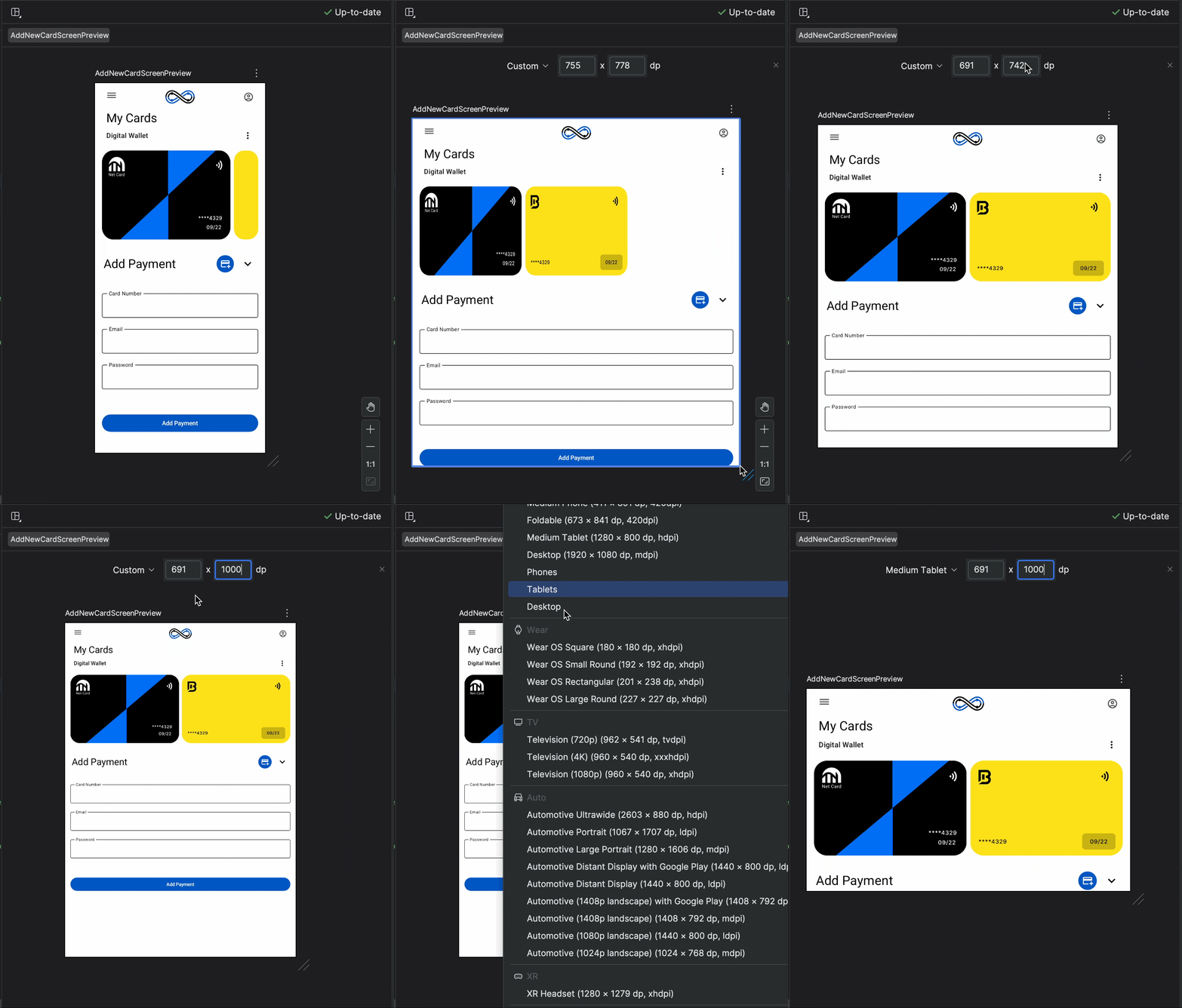
To recap, Android Studio Narwhal Feature Drop 3 includes the following enhancements and features:
Ready to accelerate your development? Download Android Studio Narwhal 3 Feature Drop from the stable channel today!
Your feedback is essential. Please continue to share your thoughts by reporting bugs or suggesting features. For early access to the latest features, download Android Studio from the Canary channel.
Join our vibrant Android developer community on LinkedIn, Medium, YouTube, or X. We can't wait to see what you build!
 Posted by John Zoeller - Developer Relations Engineer, Loyrn Hairston - Product Marketing Manager, and Jonathan Salamon - Dashlane Staff Software Engineer
