Ground AI prompts in Google Docs on existing sources from Gemini Notebook
We are introducing the ability to use Gemini Notebook as a context source in Google Docs. Building on our Workspace Intelligence foundation, this feature bridges the gap between deep research and content creation by grounding your drafts in a curated knowledge base – all without the need to switch tabs or copy-paste between tools.
If you’ve organized research in Gemini Notebook, you can now seamlessly tap into that library right where you write in Google Docs. Whether you're drafting a project proposal or a technical whitepaper, simply type "@" in the side panel or bottom bar to reference an existing Notebook. Gemini will ground its output in your sources and provide inline citations, making it easy to verify facts while staying in the flow of your work.
Getting started
- Admins: These features are available by default if Gemini for Workspace in Drive is enabled. Visit the Help Center to learn more about managing access to Gemini features in Google Workspace.
- End users: You must have Workspace smart features enabled to use these features. Visit the Help Center to learn more about creating personalized documents with Gemini in Google Docs.
Rollout pace
- Rapid Release and Scheduled Release domains: Available now
Availability
- Business: Business Standard and Plus
- Enterprise: Enterprise Standard and Plus
- Education: Education Plus
- Consumer: Google AI Pro and Ultra
- Education Add-ons: Google AI Pro for Education, Teaching and Learning
- Other Add-ons: AI Expanded Access
Resources
- Google Workspace Admin Help: Manage Gemini for Google Workspace
- Google Help: Respond to & manage comments with Gemini in Google Docs
- Google Docs Editors Help: Learn how Gemini in Gmail, Calendar, Chat, Docs, Drive, Sheets, Slides, Meet & Vids protects your data
Source: Google Workspace Updates
Seamlessly import your emails from any IMAP server to Google Workspace
We’re excited to announce the GA release of a new, simplified way for Workspace admins to import their past emails from any IMAP-based email provider while setting up Google Workspace.
By using this new feature, Google Workspace admins can import past emails seamlessly in a few clicks from multiple IMAP servers including Hostinger, Zoho, Yahoo!, iCloud, and many more. This significantly reduces the time and effort required to switch to Google Workspace, and consolidates your important emails into one secure location.
You can start the import process in two simple steps:
- Connect to the IMAP server of your choice
- Type in your IMAP email address and password
![]() |
Example of email import process from any IMAP server |
- You can now import past emails of only one user through this new feature. Visit the Help Center to learn how to import emails from multiple IMAP accounts.
- You can import users and data only after completing your domain verification and email activation. The data import process runs in the background while you can continue with your Workspace setup.
Getting started
- Admins: This feature will be available in the setup process for Google Workspace. Once you’ve verified your domain and activated your email records, you will find an option to import from IMAP-based email provider to Google Workspace. Visit the Help Center to learn more about importing emails from IMAP account during setup.
- End users: This feature is for admins only.
Rollout pace
- Rapid Release and Scheduled Release domains: Available now
Availability
- Available to all Google Workspace customers
Resources
- Google Workspace Admin Help: Import business data during setup
Source: Google Workspace Updates
We’re honoring Latino culture this Hispanic Heritage Month.
Celebrate Hispanic Heritage Month with Google’s Latin Pop Doodle and curated Google TV collections. See how we honor Latino culture today.
Source: The Official Google Blog
Here’s what was announced at Made On YouTube 2026.
YouTube introduced updates that make the platform smarter, more personal and easier to navigate.
Source: The Official Google Blog
Occupancy counting now available for Google Meet on Logitech room hardware
Occupancy counting is now available for Android-based Logitech Gen 2 room hardware (starting with Logitech Rally Board 65) to help measure how meeting rooms are used. This feature brings the same occupancy counting capabilities found on ChromeOS devices to Android-based hardware. Support for occupancy counting will be added next year for earlier Gen 1 devices later as part of an upcoming CollabOS update.
Understanding room occupancy helps organizations optimize real estate and room design based on user needs. For instance, organizations can track if rooms with older video hardware are being avoided in favor of rooms equipped with better tracking cameras and audio bars.
Admins can review occupancy data in the Google Admin console and optionally download it as a spreadsheet. This feature does not collect or store any personally identifiable information (PII). Because occupancy detection processes data locally on the device, the camera LED indicator may remain off during counting depending on the hardware vendor. Refer to vendor documentation for device-specific information.
![]() |
Review room booking and occupancy in the Admin console |
Getting started
- Admins: This feature will be off by default and can be enabled at the domain, organizational unit (OU), or group level. Visit the Help Center to learn more about turning on occupancy detection.
- End users: There is no end-user setting for this feature.
Rollout pace
- Rapid Release and Scheduled Release domains: Extended rollout (potentially longer than 15 days for feature visibility) starting on September 28, 2026
Availability
- Available now to all Google Workspace customers with Google Meet on Logitech Gen 2 AOSP hardware devices (Rally Board 65 or later) with support for earlier devices coming in a future CollabOS update.
Resources
- Google Workspace Admin Help: Turn on occupancy detection
- Google Workspace Admin Help: Track room and device usage with Meet hardware
Source: Google Workspace Updates
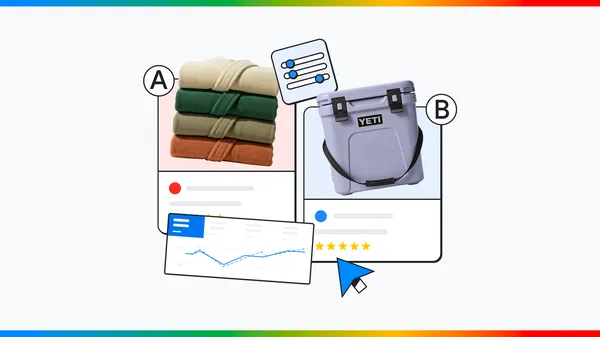
We’re bringing AI Brief to more languages and adding a new AI Max reporting feature.
We’re making it easier to create great AI Max campaigns by adding a new reporting feature and bringing AI Brief to more languages.
Source: The Official Google Blog
Google and the Gates Foundation to bring AI resources to 200 million farmers across the Global South.
Source: The Official Google Blog
Colab is now part of your Google AI plan
Source: Google Developers Blog
New Google Meet ‘Take notes for me’ settings for admins and end users take effect September 29th
Previously, we announced new admin and end user settings for Google Meet ‘Take notes for me’ pre-configuration. These settings will begin to take effect September 29th.
Below is the previously communicated information about these new settings.
Admin settings
Previously, admins could only enable or disable automatic note-taking for all meetings. We’re now rolling out a third option, which will allow admins to enable automatic note-taking only for meetings with three or more people.
Customers on Business Standard and Business Plus plans will see this setting turned ON by default on; the setting will be OFF by default for customers on Enterprise Standard, Enterprise Plus, and Frontline Plus plans, as well as those with the Google AI Pro for Education add-on. If you want to change your settings, you can do so in the Admin console. These settings will begin impacting end users on September 29th 2026.
If you currently participate in the Gemini Alpha program, and previously tested this setting, it may already be ON. Please review the current state of the settings for your organization in the Admin console.
End user settings
We’re also introducing a way for end users to enable note-taking only for meetings with three or more participants. Once the “For all meetings I host with 3+ guests” option rolls out, users should revisit their settings to confirm they’re configured as desired. This option will begin rolling out on September 29th.
Getting started
- Admins for Business Standard and Business Plus organizations: This new setting is ON by default and will begin impacting users on September 29th. If you want to change your settings, you can do so in the Admin console. Visit the Help Center for more information on how to adjust these settings.
- Admins for Enterprise Standard, Enterprise Plus, Frontline Plus, and Google AI Pro for Education organizations: This new setting is OFF by default and will begin impacting users September 29th. If you want to change your settings, you can do so in the Admin console. Visit the Help Center for more information on how to adjust these settings.
- Admins for organizations participating in Gemini Alpha program: Your settings may be impacted by previous configurations. Please review your settings before September 29th, to ensure they’re configured correctly.
- End users on all plans: The default set by admins will go into effect for end users September 29th. Users can override this default in the Meet user settings after that date. Visit the Help Center to learn more about Meeting settings for “take notes for me”.
Rollout pace
Pre-Configured settings will take effect:
- Rapid Release and Scheduled Release domains: Extended rollout (potentially longer than 15 days for feature visibility) starting September 29th
End user setting rollout:
- Rapid Release and Scheduled Release domains: Extended rollout (potentially longer than 15 days for feature visibility) starting September 29th
Availability
- Business: Business Standard and Plus
- Enterprise: Enterprise Standard and Plus
- Other Editions: Frontline Plus
- Education Add-ons: Google AI Pro for Education
Resources
- Google Meet Help: Take notes for me in Google Meet
- Google Workspace Updates Blog: New user controls for Take notes for me